
Five tabs, everything your NAS does
Click the icon next to the clock and NASBar opens on the tab you used last.
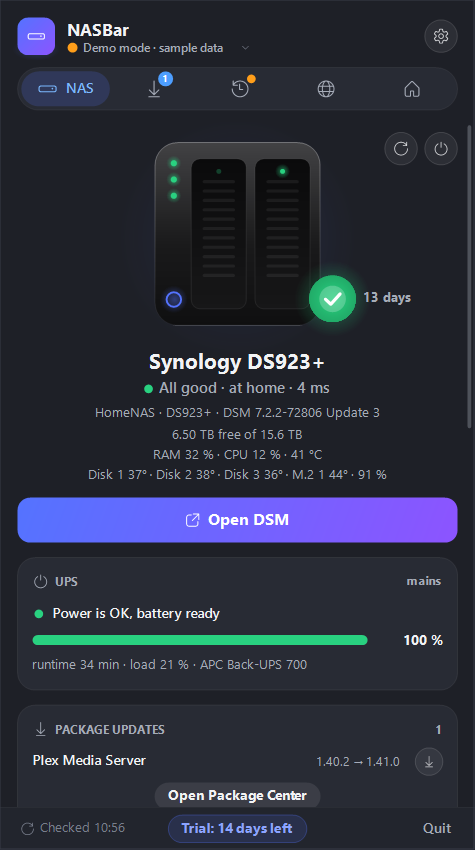
Your NAS
- Health, free space, RAM, CPU and disk temperatures
- Restart or shut down, with confirmation, and Wake-on-LAN when it’s off
- DSM and package updates, Docker containers, UPS battery
- Your services – Plex, Home Assistant, Pi-hole – with response times
Download Station
- Speeds and every task, with pause, resume and delete
- Add a .torrent or magnet link by dragging it onto the window
- Choose which files of a torrent to download
- Speed limits with a day and night schedule, RSS feeds with one-click download
Backups
- Active Backup for Business, Hyper Backup and snapshots
- Last result and next run for every computer and task
- Start a backup right from the list
- A notification when a backup fails
Home network
- A live map: internet, router, mesh nodes, NAS and this PC
- When something is down, it tells you which link broke
- Internet speed test and PC-to-NAS speed test
- Router status for ASUS, FRITZ!Box, any UPnP router or through Home Assistant
Home Assistant
- The devices you pick: heat pump, lights, switches, vacuum, doors
- Change the temperature or toggle a light without opening a browser
- Scenes and locks in the same list
Built for how a home NAS is really used
At home and away
NASBar uses the local address at home and QuickConnect or DDNS when you’re out. It picks the route itself.
Notifications that matter
NAS offline, disk warnings, finished downloads, failed backups and sign-ins. Quiet hours let only urgent ones through at night.
More than one NAS
Add your home and office NAS and switch between them in the window header.
No admin account required
A regular DSM user sees downloads and free space. NASBar tells you which parts need an administrator.
Keyboard and screen readers
Tab moves between buttons, Enter presses them. Narrator and NVDA read every button and a summary of each tab.
Mini window
A small always-on-top tile with status, free space and transfers. Drag it wherever you like.
Your data stays at home
NASBar talks straight to your NAS. There is no NASBar account and no cloud service in between.
- No telemetry
- NASBar doesn’t collect usage data or crash reports.
- Passwords stay encrypted
- Your DSM password is stored with Windows DPAPI, tied to your Windows account.
- Away from home
- Remote access goes through Synology QuickConnect or your own DDNS, just like DSM in a browser.
- Offline license
- Your license key is checked on your computer, without contacting a server.
One price, no subscription
€12one-time payment
- 14-day free trial with every feature
- Free 2.x updates
- One license for all your computers
What you need
Windows
Windows 10 or 11. .NET Framework 4.7.2 is already built in.
Your NAS
A Synology NAS with DSM 7. Download Station, Active Backup and Hyper Backup are used when installed.
Questions
Is NASBar made by Synology?
No. NASBar is an independent app. It uses the same web interface (API) that DSM itself uses.
Does it work with QNAP, UGREEN, TrueNAS or other NAS?
Not yet. NASBar uses Synology’s DSM interface for disks, Download Station and backups, so it needs a Synology NAS. Try it free for 14 days before you buy.
Does it need an administrator account?
No. With a regular DSM user you see downloads, RSS and free space. Disk health, backups, UPS and restart need an administrator.
Windows says the app is from an unknown publisher.
The installer isn’t code-signed yet, so SmartScreen may warn you. Click “More info”, then “Run anyway”.
What happens when the trial ends?
The window asks for a license key. Your settings stay as they are, and demo mode keeps working.
How do updates work?
NASBar checks for new versions and installs one with a single click from the bottom of the window.
Does it work with my router?
The network map works with any router. The router card adds details for ASUS, FRITZ!Box, routers with UPnP, or through Home Assistant.